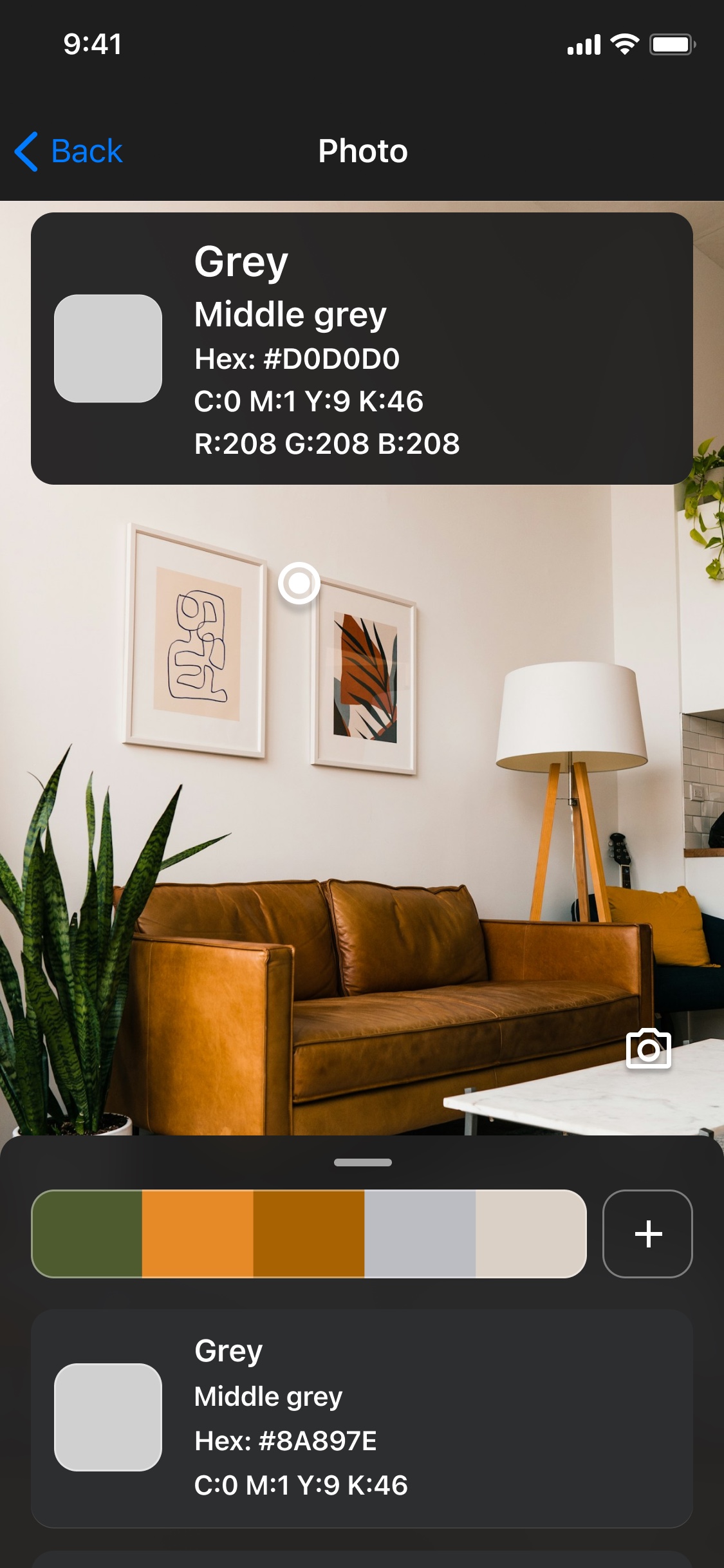
Open the picture in Color Identifier and select the area you want to describe. Read the app’s color name together with its numerical values. A descriptive name helps explain a shade, but nearby colors can share a name and different naming systems can use different words. Keep HEX or RGB alongside the name when you need a reproducible digital value.
Find a useful name for the shade
Decide which part you mean
A photo of a green object can contain yellow highlights, blue shadows and reflected colors. Select the area you actually want to describe rather than assuming the whole object is one uniform shade.
Open the picture in the mobile app
Use Color Identifier’s photo workflow, then zoom or scroll to the relevant area. For an object in front of you, use the camera instead and watch the lighting.
Read the name and code together
Use the name for a plain-language description. Keep the HEX or RGB values if you will enter the result in another tool or distinguish it from a nearby shade.
Check the neighboring area
Move the selection slightly to see whether the name is stable across the region. If it changes, the photograph may contain a transition or several different recorded colors.
A color name is a description, not a unique specification
Words such as gray, blue or warm brown summarize what a shade looks like. More specific descriptive names are helpful too, but they are not a universal identifier for every material, product or display.
For a design handoff, a code is the more useful partner to the name. Two results can both be called a kind of blue while their RGB channel values differ. Saving only the name loses that distinction.
Answer “what color is this?” at the right level
If you are labeling an inspiration photo, a general family and a saved swatch may be enough. If you are documenting a website color, keep the numerical value. If you are buying paint or fabric, a photograph and descriptive name are only a starting reference.
For example, the useful answer to a photographed chair may be “a muted green, in this lighting.” That is different from naming a manufacturer’s finish. The app helps you inspect the recorded shade; it does not establish the identity of the object or its supplier.
Use the browser for codes and the app for names
The free browser Photo picker currently returns HEX, RGB and HSL values for the displayed preview. It does not have a color-name field. Use it to inspect the area and try the workflow without a sign-up.
The mobile app’s supported identification flow supplies descriptive names along with values. Use that when the name itself is your goal, or when you want to save and revisit colors on your phone. The current mobile offer can include purchases and limits.
How to use Color Identifier for this task
- Open the picture or camera source in Color Identifier.
- Select the shade you want to name.
- Read the descriptive name and keep its code when precision between digital values matters.
- Save a useful reference or add related colors to a project palette.
Find the name, keep the reference.
Use the mobile app for descriptive color names and a collection you can return to.


The browser tools are free. Mobile features, limits and purchases depend on the current app and platform.
Questions about find color name from picture
Why do two different colors have the same name?
Names group colors into descriptive categories. Small differences can produce different codes while remaining within the same named family.
Will the name tell me the exact paint or fabric?
No. A descriptive color name is not a manufacturer, paint formula, stock code or proof of a material match.
Can the free website name the color?
The current browser picker provides codes. Use the supported mobile identification workflow for names, and check the app’s current limits and offer.