To identify a color on iPhone, open Color Identifier and choose the camera or a photo. Select the part of the image you want to inspect, then read its descriptive color name and available values. Save a useful result for later. A camera reading is an estimate of the recorded scene, not proof of an object’s exact physical color.
Start with the right source
Install the correct app
Open the App Store link on this page. Check the name Color Identifier: Color Picker and developer Irina Metelkina; several unrelated apps use similar names.
Choose camera or photo
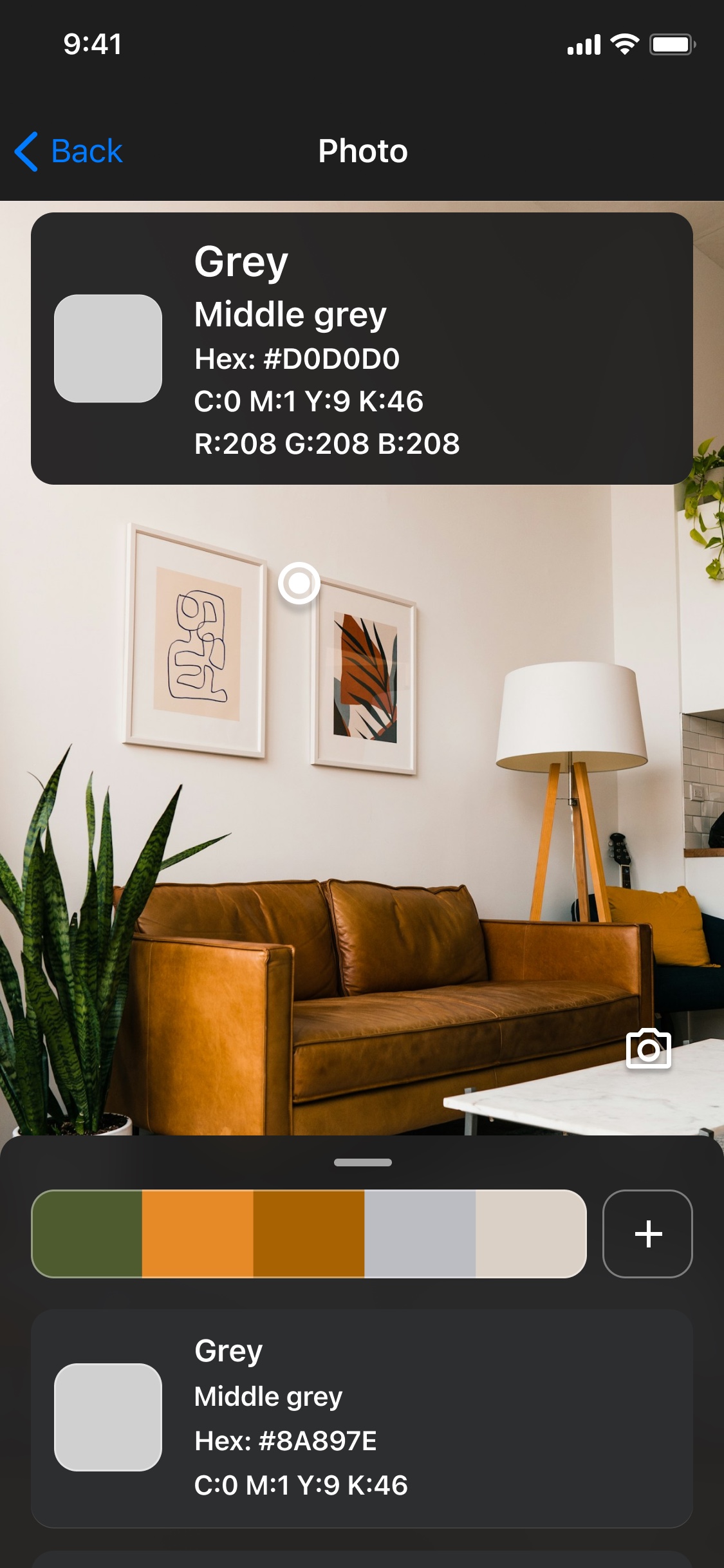
Use the camera when the object is in front of you. Choose a saved image when you already have a photo or screenshot. Give the app the access required for the source you choose.
Select a clear area
Move the selection to the middle of the surface or shape. For a photo, zoom or scroll to inspect the area. Avoid a shiny highlight, a dark shadow or the edge of two objects.
Read and keep the result
Read the name and HEX or RGB values. Save a color you want to revisit, or add useful shades to a palette for a project.
Camera or photo: which should you use?
A camera is useful for a fabric, flower or object you have with you. A saved image is better when the task is to inspect what that particular file contains. If a colleague sends a logo, use the supplied artwork rather than photographing it on another screen.
For example, if you want the blue in a screenshot, open the screenshot directly. Photographing the display adds the screen, room light and camera processing to the result. A direct file removes those extra steps, although image profiles and resized previews can still affect displayed values.
Understand the name and the code
A name is a convenient way to describe a color in conversation. A HEX value or RGB triplet is more useful when entering the color in a design tool. Keep the code when two similar shades need to be distinguished.
If nearby points produce slightly different results, inspect a few spots across the area. In a natural photograph, texture and light can make those differences part of the image rather than an error in the picker.
What is free, and when is the app useful?
The browser photo picker, converter and palette tools are free and do not require sign-up. They are a useful place to try a saved image before deciding whether you want a mobile color tool.
Color Identifier is free to download, with in-app purchases. Check the current App Store offer and limits before starting a paid option. Use the app for camera work and a collection you want to revisit on your phone; browser-saved palettes stay in that browser and do not automatically appear in the app.
Use Color Identifier on your next iPhone project
- Open a reference photo or the camera in the app.
- Select a useful shade and record its name and code.
- Save it with enough context to recognize the reference later.
- Collect related shades in a named palette instead of relying on memory.
Keep a color picker on your iPhone.
Open the App Store listing to check compatibility and the current app offer.

The browser tools are free. Mobile features, limits and purchases depend on the current app and platform.
Questions about color identifier app for iPhone
Do I need camera access to inspect a saved photo?
A saved-photo workflow uses the photo source rather than a live camera. Choose the relevant access the app requests. The free browser picker does not connect to a camera.
Can I get HEX and RGB values on iPhone?
The app listing describes HEX, RGB and CMYK values along with color names. The free browser photo picker also provides HEX and RGB for a selected point.
Will the name identify an exact paint shade?
No. A descriptive name and a camera-derived code do not establish a paint brand, formula or physical touch-up match. Use a physical reference for a purchase decision.