Start with a photo, select several useful colors and collect their values. In Color Identifier, add selected shades to a named palette so you can revisit them on your phone. This guide uses a deliberate sampling workflow; it does not promise automatic dominant-color extraction or a one-click palette from the browser image tool.
Build a palette with a purpose
Choose a photo with a useful direction
Start with an image whose overall feeling fits the project: a room, landscape, artwork or material combination. It is a reference for choices, not a requirement to use every color in it.
Pick an anchor color
Select the shade that should do the most work in your project. Sample a representative area instead of a shiny highlight or a mixed edge.
Add supporting shades
Look for a lighter or darker companion, a quiet neutral and a possible accent. These are choices to test; a palette does not become suitable just because every color came from the same photograph.
Save a named collection
Add the useful choices to a palette in the mobile app. A name tied to the project or source makes it easier to understand the collection later.
Try the colors in the intended design
Check the palette where it will be used. A set that looks appealing as swatches may need changes when one color becomes a large background or text is placed over another.
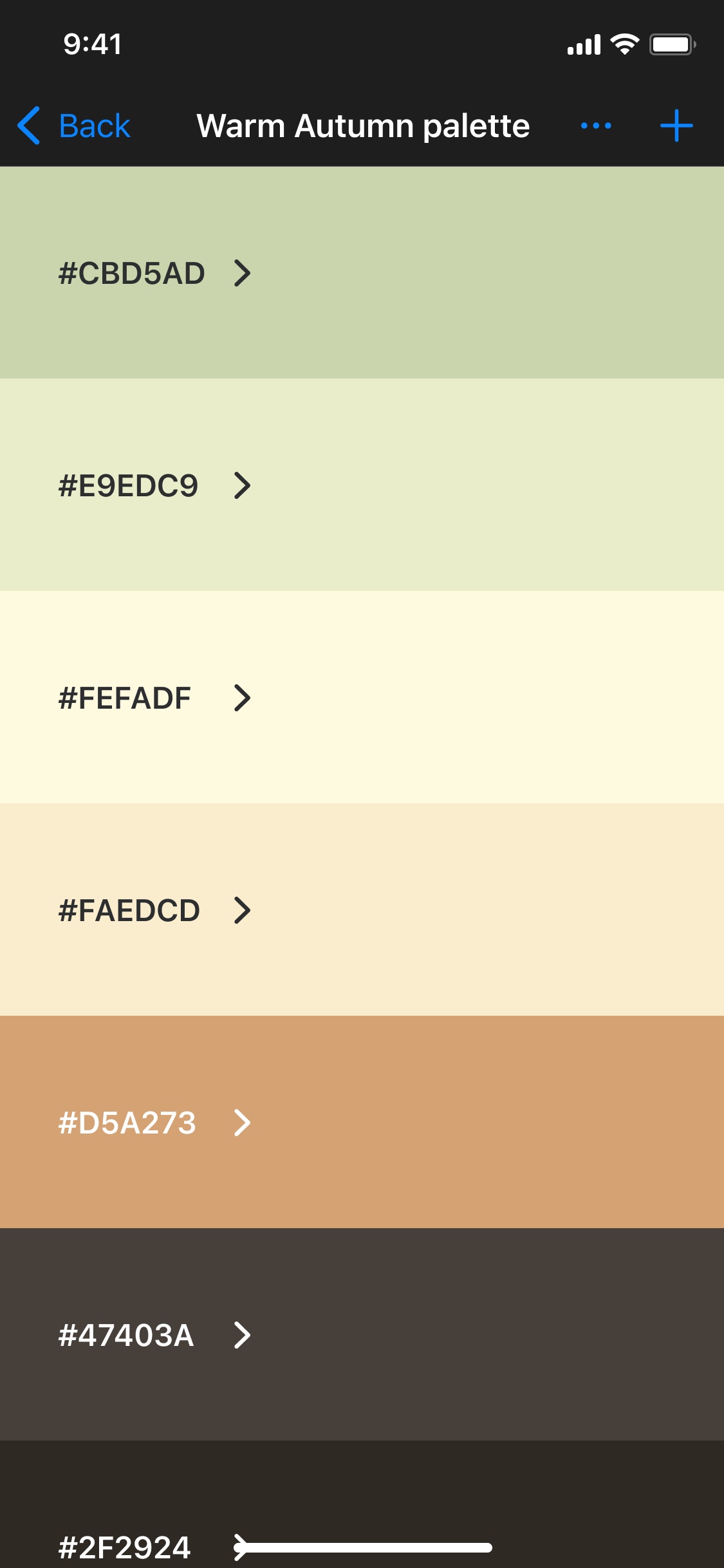
Sample intentionally, then edit the collection
Consider a coastal photograph with blue water, a warm wall and green plants. The blue can be an anchor, the wall can provide an accent and a pale area can suggest a neutral. Which ones you keep depends on the design, rather than the proportion of pixels each occupies.
It is fine to leave out a color that appears in the image. It is also reasonable to adjust a chosen shade in a design tool. A photograph can supply a starting direction without becoming an inflexible specification.
What you can try in the free browser tools
Use the Photo picker to inspect source colors and copy their values. The Palettes tab separately lets you choose a base color, explore analogous, complementary or monochromatic harmonies, edit five swatches and save the collection in that browser.
The browser does not automatically extract a whole palette from the photo, and saved browser palettes do not sync into the app. Use the native color chooser for editing available swatches; use the app’s own color-to-palette workflow when you want to collect selected photo colors on your phone.
A saved palette is a starting point for testing
For a room, check physical materials and samples in the room’s light. For a website or presentation, test text and background combinations for readability. Sharing a visual theme is different from proving that every pair of swatches has sufficient contrast.
Keep the codes with the collection. A name such as “sea blue” can remind you of the source, but the value is what another tool needs to reproduce that particular digital shade.
How to use Color Identifier for this task
- Open the reference photo in Color Identifier and inspect a useful point.
- Save the selected shade or use the app’s palette controls to collect it.
- Repeat for the supporting colors you want to keep.
- Name the palette for the project and revisit it when making the actual design choices.
Make the photo the start of your next palette.
Keep selected shades together in Color Identifier instead of losing them between separate screenshots.


The browser tools are free. Mobile features, limits and purchases depend on the current app and platform.
Questions about create a color palette from a photo
Does this guide automatically extract the main colors?
No. It describes choosing useful colors deliberately. The current browser tools do not provide automatic dominant-color extraction.
How many colors can a palette contain?
The iPhone generator lets you choose 1–5 colors per generated palette; saved iPhone collections can hold up to 12. The free browser editor has five editable swatches. Use only the colors the project needs.
Are browser palettes backed up to my phone?
No. Browser palettes stay in that browser’s local storage. Clearing site data removes them, and no automatic app synchronization is provided.